


In a Nutshell: What You Should Know
| ‣‣ Hyperlinks turn text or images into clickable links that direct users to webpages, documents, or specific locations. ‣‣ Proper hyperlink use boosts SEO by improving how easily search engines find and read your pages, while also distributing page authority across your site and helping users navigate more easily. ‣‣ UPosition helps businesses strengthen their site’s link structure for long-term organic growth. Get a complementary SEO audit today! |
If you’ve ever needed to turn text into a clickable link, you’ve probably wondered how to make a hyperlink. While the process is simple, knowing how to create and use hyperlinks correctly can make your content easier to navigate and more effective.
In this article, we’ll cover how hyperlinks work, how to generate them in Word, Google Docs, Gmail, Outlook, HTML, and social media, what makes a hyperlink SEO-friendly, and how to fix the most common linking problems.
Let ‘s dive in!
What Is a Hyperlink and How Does It Work?
A hyperlink is a clickable element, usually text or an image, that takes the user to another webpage, document, or location within the same page. It works through an underlying URL attached to the visible text, known as anchor text.
How to Make a Hyperlink in Microsoft Word
1. Select the text or image you want to turn into a link.

2. Go to the Insert tab, click Link and then Insert Link, or press Ctrl+K

3. In the pop-up window, paste the destination URL into the Enter Link field.

4. Click Insert to apply the link.

Word automatically formats the linked text in blue with an underline, though you can adjust this styling later if it doesn’t match your document’s design.
How to Make a Hyperlink in Google Docs
1. Highlight the text or image you want to link.

2. Right-click and select Insert Link, or use the shortcut Ctrl+K (Cmd+K on Mac).

3. Paste the URL, or search for a Google Doc, Sheet, or Slide to link directly.

4. Press Enter or click Apply.

Google Docs also detects some URLs automatically as you type, converting them into live links without any extra steps.
Links are really important for us to find content initially. So it’s like if nobody links to your website ever then we’re going to have a hard time recognizing that it even exists.
– John Mueller, Google Search Advocate
How to Make a Hyperlink in an Email: Gmail & Outlook
In Gmail:
1. Highlight the text you want to link.

2. Click the Insert Link icon in the formatting toolbar (or use Ctrl+K).

3. Paste the URL and click Apply.

In Outlook:
1. Select the text or image.
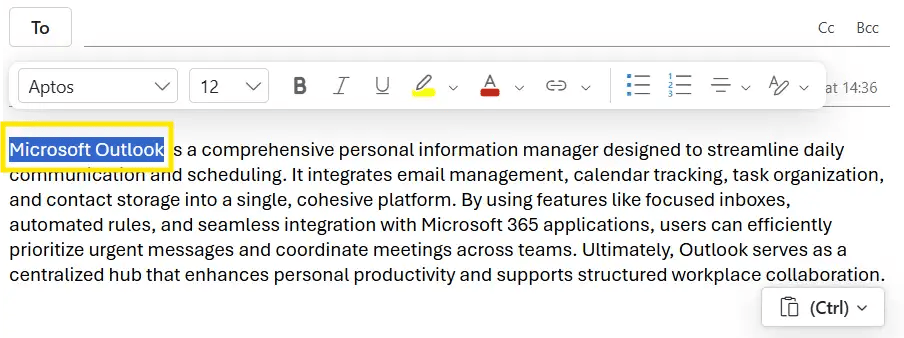
2. Go to Insert > Link, or right-click and choose Link.

3. Enter the URL in the Web address field and confirm.

Both platforms will also auto-link a pasted URL, though manually adding anchor text usually looks cleaner and reads better for recipients.
How to Make a Hyperlink in HTML
To make a hyperlink in HTML, use the <a> tag along with the href attribute, which defines the destination URL:
<a href="https://www.uposition.com">Visit UPosition</a>
The text between the opening and closing <a> tags is what appears as clickable anchor text on the page. You can also open the link in a new tab by adding target=”_blank”:
<a href="https://www.uposition.com" target="_blank">Visit UPosition</a>
If you’d rather not write the code by hand, a hyperlink HTML generator tool can build the <a> tag for you, which is a handy shortcut when you need to create a hyperlink quickly for a one-off page or email template.
Internal linking is one of the biggest things you can do on a website to guide Google and guide visitors to the pages that you think are important.
– John Mueller, Google Search Advocate
How to Make a Hyperlink on Social Media: Instagram, LinkedIn, Facebook
Social platforms handle links with more restrictions than documents or webpages:
- Instagram. Links in regular posts and captions aren’t clickable on Instagram. You can add a clickable link in your bio or through the link sticker on Stories. Another option is to pay to get your account verified and have 1K followers or more to be able to add links to your reels.
- LinkedIn. Pasting a URL into a post automatically generates a clickable preview card once you publish on LinkedIn.
- Facebook. Pasting a URL into a post creates an automatic link preview on Facebook, and you can remove the raw text afterward while keeping the card.

Best Practices for SEO-Friendly Hyperlinks
Hyperlinks are functional, and they also influence how search engines read and rank your content. A few habits make the difference between a link that helps your SEO and one that does nothing at all!
- Anchor text should be short, descriptive, and relevant to the destination page. Avoid generic phrases like “click here,” since search engines use anchor text to understand what the linked page is about.
- Internal and external links serve different purposes. Internal links guide visitors deeper into your own site and help search engines map its structure, while external links point to outside resources that add credibility or context.
- In HTML, no-follow and do-follow tags tell search engines whether to pass authority to the linked page. Dofollow is the default, while no-follow (rel=”nofollow”) is typically used for sponsored content, ads, or untrusted sources.
Together, these choices form part of a broader on-page SEO strategy that supports both usability and visibility.
Common Hyperlink Problems and How to Fix Them
Why Is My Hyperlink Not Clickable?
Your hyperlink is not clickable because the anchor tag or formatting wasn’t applied correctly, the text was pasted as plain text instead of a formatted link, or the platform stripped the link during copy-paste. Re-inserting the link manually usually solves it.
How Do I Remove a Hyperlink?
To remove a hyperlink, select the linked text, right-click, and choose Remove Link (Word and Google Docs both offer this option directly in the context menu). In HTML, simply delete the <a> and </a> tags while keeping the text between them.

Improve Your Website’s Link Structure With UPosition
With over 10 years of SEO experience, UPosition can help your business build a link structure that supports both search engines and the people navigating your content.
Our Technical SEO work improves internal linking and site architecture, while our Digital PR & Link Building services focus on earning the relevant mentions and authoritative links that strengthen your rankings and visibility.
Ready to see how your links are performing? Request a free SEO audit and get a clear picture of what’s working and what needs attention.

Hyperlink FAQs
How Can You Turn Text Into a Hyperlink?
You can turn text into a hyperlink by selecting the text and using your platform’s link tool, whether that’s Word, Google Docs, an email client, or the <a> tag in HTML.
How Do I Make a Hyperlink in Excel?
To make a hyperlink in Excel, right-click the cell, select Link (or Hyperlink), then enter the URL or select a file, cell reference, or email address as the destination.
How Do I Create a Hyperlink Shortcut?
To create a hyperlink shortcut, use Ctrl+K (Cmd+K on Mac) in most word processors, browsers, and email clients to open the link insertion window instantly, without navigating through menus.
Related Articles

Cool Google Tricks to Search Effectively & Adjust Your SEO [2027]
The article explores Google’s evolving search tools, focusing on enhanced AI technologies and visual search features that impact SEO strategies. Emphasizing tailored, data-driven approaches, it outlines methods for optimizing content and leveraging Google’s various functionalities to boost visibility and conversions…
Keep reading ‣
How Old Is Google? History & Rise to Popularity [Timeline]
Google originated from a Stanford project in 1996 and transformed into a leading tech giant by 1998. Key milestones include AdWords, Android, and AI innovations like Gemini. As it evolves, Google prioritizes sustainability and AI, with a focus on adapting…
Keep reading ‣
Does Google Know Everything, Yes or No? [The Algorithm Explained]
Google is a powerful search engine but has limitations. It cannot access offline information, personal experiences, or guarantee accuracy, often presenting outdated or biased data. Critical thinking and source verification are essential when using Google. Alternatives like DuckDuckGo offer privacy…
Keep reading ‣
Leave a Reply